Support · representative-capture
Create and email a support bundle
Route under test: support_bundle
Before you start
- A recorded error or support request
- Your local mail client
- A browser for the file-transfer link
Workflow
- Step 1. Record the exact error message, the time it occurred and the WorkCabinet version.
- Step 2. Create the support bundle using the approved support-bundle action or the instructions supplied by WorkCabinet Support.
- Step 3. Open the bundle locally and remove passwords, payment details, private keys and unrelated personal data before sharing it.
- Step 4. For a large bundle, open SwissTransfer at https://www.swisstransfer.com/en, upload the reviewed bundle, set an expiry and password, and copy the download link. SwissTransfer is a third-party service; do not upload data until you have reviewed it.
- Step 5. Open your local mail client and email support@workcabinet.co.uk with the error summary, WorkCabinet version and download link. Send the transfer password separately, preferably in a second message or after Support confirms receipt.
- Step 6. Keep the transfer confirmation until Support confirms that the bundle has been downloaded, then allow the transfer to expire or delete it if the service provides that option.
Open SwissTransfer large-file transfer
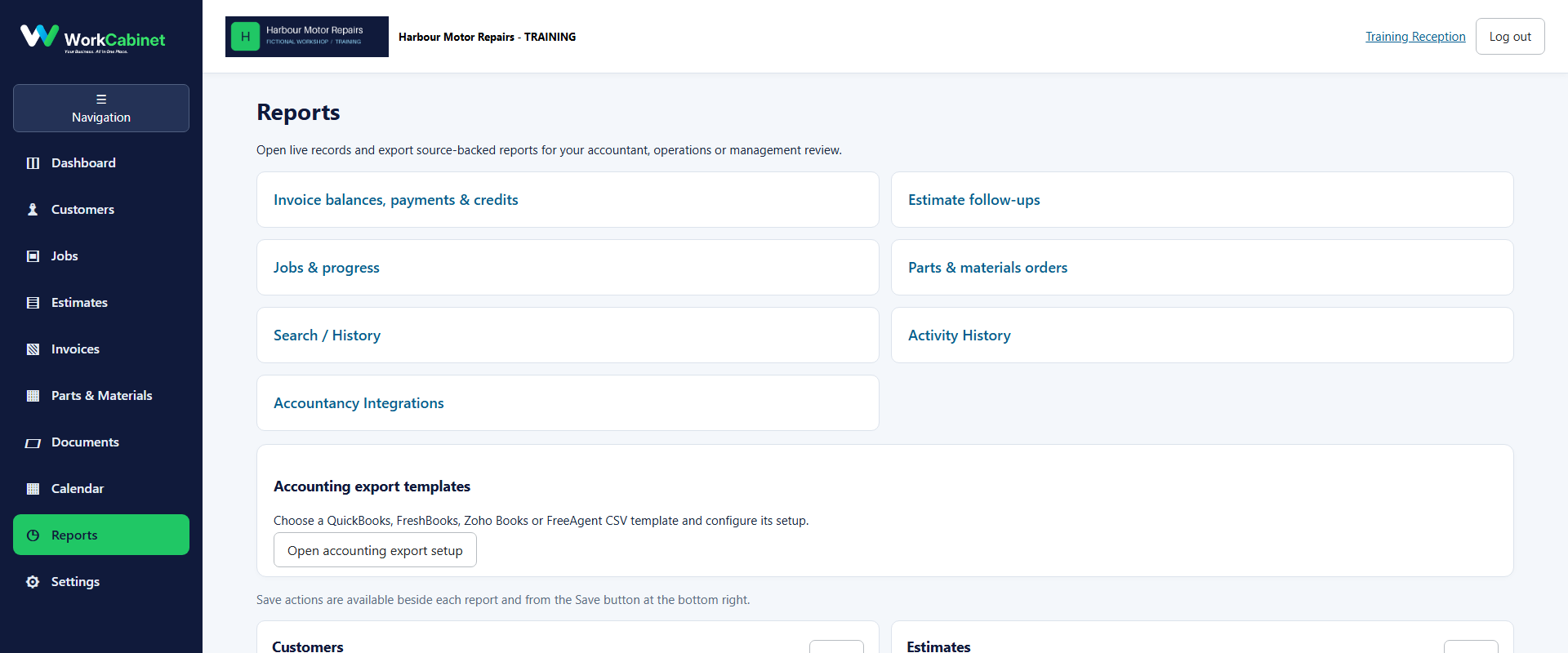
Capture note: This image is genuine product evidence. Representative captures are used where the workflow prerequisite itself is not a visible application screen.